搭建开发环境
欢迎使用 React Native!这篇文档会帮助你搭建基本的 React Native 开发环境。
- React Native CLI Quickstart
- Expo Go Quickstart
译注:沙盒环境大量依赖于国外网络环境,也不能直接安装第三方原生组件。不建议国内用户使用
Assuming that you have Node 12 LTS or greater installed, you can use npm to install the Expo CLI command line utility:
- npm
- Yarn
npm install -g expo-cli
yarn global add expo-cli
Then run the following commands to create a new React Native project called "AwesomeProject":
- npm
- Yarn
expo init AwesomeProject

cd AwesomeProject
npm start # you can also use: expo start
expo init AwesomeProject

cd AwesomeProject
yarn start # you can also use: expo start
This will start a development server for you.
Running your React Native application
Install the Expo client app on your iOS or Android phone and connect to the same wireless network as your computer. On Android, use the Expo app to scan the QR code from your terminal to open your project. On iOS, use the built-in QR code scanner of the Camera app.
Modifying your app
Now that you have successfully run the app, let's modify it. Open App.js in your text editor of choice and edit some lines. The application should reload automatically once you save your changes.
That's it!
Congratulations! You've successfully run and modified your first React Native app.

Now what?
Expo also has docs you can reference if you have questions specific to the tool. You can also ask for help at Expo forums.
These tools help you get started quickly, but before committing to building your app with Expo CLI, read about the limitations.
If you have a problem with Expo, before creating a new issue, please see if there's an existing issue about it:
- in the Expo CLI issues (for issues related to Expo CLI), or
- in the Expo issues (for issues about the Expo client or SDK).
If you're curious to learn more about React Native, check out the Introduction to React Native.
Running your app on a simulator or virtual device
Expo CLI allows you to run your React Native app on a physical device without setting up a development environment. If you want to run your app on the iOS Simulator or an Android Virtual Device, please refer to the instructions for "React Native CLI Quickstart" to learn how to install Xcode or set up your Android development environment.
Once you've set these up, you can launch your app on an Android Virtual Device by running npm run android, or on the iOS Simulator by running npm run ios (macOS only).
Caveats
Because you don't build any native code when using Expo to create a project, it's not possible to include custom native modules beyond the React Native APIs and components that are available in the Expo client app.
If you know that you'll eventually need to include your own native code, Expo is still a good way to get started. In that case you'll need to "eject" eventually to create your own native builds. If you do eject, the "React Native CLI Quickstart" instructions will be required to continue working on your project.
Expo CLI configures your project to use the most recent React Native version that is supported by the Expo client app. The Expo client app usually gains support for a given React Native version about a week after the React Native version is released as stable. You can check this document to find out what versions are supported.
If you're integrating React Native into an existing project, you'll want to skip Expo CLI and go directly to setting up the native build environment. Select "React Native CLI Quickstart" above for instructions on configuring a native build environment for React Native.
根据你所使用的操作系统、针对的目标平台不同,具体步骤有所不同。如果想同时开发 iOS 和 Android 也没问题,你只需要先选一个平台开始,另一个平台的环境搭建只是稍有不同。
如果阅读完本文档后还碰到很多环境搭建的问题,我们建议你还可以再看看求助讨论区。注意!视频教程或者其他网络上的博客和文章可能和本文档有所出入,请以最新版本的本文档所述为准!
开发平台
- macOS
- Windows
- Linux
目标平台
- Android
- iOS
安装依赖
必须安装的依赖有:Node、JDK 和 Android Studio。
虽然你可以使用任何编辑器来开发应用(编写 js 代码),但你仍然必须安装 Android Studio 来获得编译 Android 应用所需的工具和环境。
Node & Watchman
我们推荐使用Homebrew来安装 Node 和 Watchman。在命令行中执行下列命令安装(如安装较慢可以尝试阿里云的镜像源):
brew install node@18
brew install watchman
如果你已经安装了 Node,请检查其版本是否在 18 以上。安装完 Node 后建议设置 npm 镜像(淘宝源)以加速后面的过程(或使用科学上网工具)。
注意:强烈建议始终选择 Node 当前的 LTS (长期维护)版本,一般是偶数版本,不要选择偏实验性质的奇数版本。
注意:不要使用 cnpm!cnpm 安装的模块路径比较奇怪,packager 不能正常识别!
# 使用nrm工具切换淘宝源
npx nrm use taobao

# 如果之后需要切换回官方源可使用
npx nrm use npm
Watchman则是由 Facebook 提供的监视文件系统变更的工具。安装此工具可以提高开发时的性能(packager 可以快速捕捉文件的变化从而实现实时刷新)。
Yarn
Yarn是 Facebook 提供的替代 npm 的工具,可以加速 node 模块的下载。
npm install -g yarn
安装完 yarn 之后就可以用 yarn 代替 npm 了,例如用yarn代替npm install命令,用yarn add 某第三方库名代替npm install 某第三方库名。
Java Development Kit
我们推荐使用Homebrew来安装由 Azul 提供的 名为 Zulu 的 OpenJDK 发行版。此发行版同时为 Intel 和 M1 芯片提供支持。在 M1 芯片架构的 Mac 上相比其他 JDK 在编译时有明显的性能优势。
brew install --cask zulu@17

# Get path to where cask was installed to double-click installer
brew info --cask zulu@17
安装 JDK 后,请更新 JAVA_HOME 环境变量。如果你是按照上述步骤操作,JDK 很可能位于 /Library/Java/JavaVirtualMachines/zulu-17.jdk/Contents/Home
React Native 当前需要 Java Development Kit [JDK] 17,不建议使用更高版本或更低版本,可能会碰到问题。你可以在命令行中输入
javac -version(请注意是 javac,不是 java)来查看你当前安装的 JDK 版本。
低于 0.73 版本的 React Native 需要 JDK 11 版本,而低于 0.67 的需要 JDK 8 版本。
Android 开发环境
如果你之前没有接触过 Android 的开发环境,那么请做好心理准备,这一过程相当繁琐。请万分仔细地阅读下面的说明,严格对照文档进行配置操作。
译注:请注意!!!国内用户
必须必须必须有稳定的代理软件,否则在下载、安装、配置过程中会不断遭遇链接超时或断开,无法进行开发工作。某些代理软件可能只提供浏览器的代理功能,或只针对特定网站代理等等,请自行研究配置或更换其他软件。总之如果报错中出现有网址,那就是因为链接源仓库的网络链接被阻断了,这一阻断现象可能因时间、地区、运营商而不同。
也可以尝试参考这里的做法设置阿里云的 maven 镜像源,但这个做法可能随 gradle 或者 rn 版本的不同而失效。
1. 安装 Android Studio
首先下载和安装 Android Studio,国内用户可能无法打开官方链接,请自行使用搜索引擎搜索可用的下载链接。安装界面中选择"Custom"选项,确保选中了以下几项:
Android SDKAndroid SDK PlatformAndroid Virtual Device
然后点击"Next"来安装选中的组件。
如果选择框是灰的,你也可以先跳过,稍后再来安装这些组件。
安装完成后,看到欢迎界面时,就可以进行下面的操作了。
2. 安装 Android SDK
Android Studio 默认会安装最新版本的 Android SDK。目前编译 React Native 应用需要的是Android 14 (UpsideDownCake)版本的 SDK(注意 SDK 版本不等于终端系统版本,RN 目前支持 android 6 以上设备)。你可以在 Android Studio 的 SDK Manager 中选择安装各版本的 SDK。
你可以在 Android Studio 的欢迎界面中找到 SDK Manager。点击"Configure",然后就能看到"SDK Manager"。
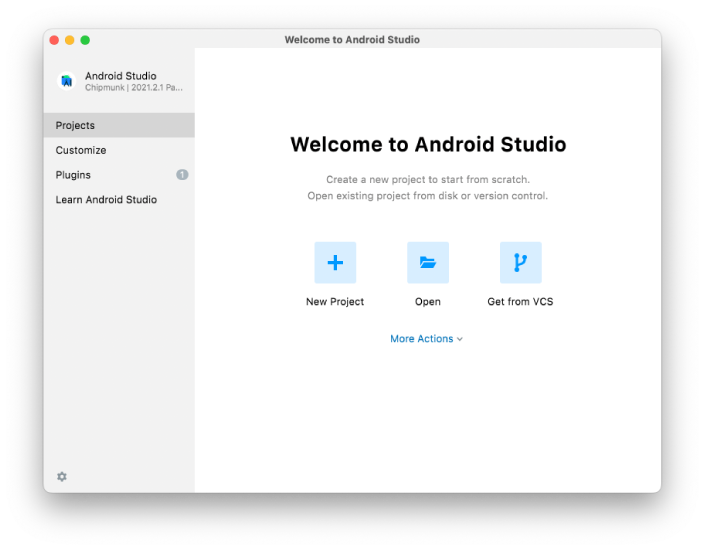
SDK Manager 还可以在 Android Studio 的"Preferences"菜单中找到。具体路径是Appearance & Behavior → System Settings → Android SDK。
在 SDK Manager 中选择"SDK Platforms"选项卡,然后在右下角勾选"Show Package Details"。展开Android 14 (UpsideDownCake)选项,确保勾选了下面这些组件(如果看不到这个界面,则需要使用稳定的代理软件):
Android SDK Platform 34Intel x86 Atom_64 System Image(官方模拟器镜像文件,使用非官方模拟器不需要安装此组件)或是Google APIs ARM 64 v8a System Image(针对 Apple Silicon 系列机型)
然后点击"SDK Tools"选项卡,同样勾中右下角的"Show Package Details"。展开"Android SDK Build-Tools"选项,确保选中了 React Native 所必须的34.0.0版本。你可以同时安装多个其他版本。
点击"Apply"来下载和安装选中的这些组件。
3. 配置 ANDROID_HOME 环境变量
React Native 需要通过环境变量来了解你的 Android SDK 装在什么路径,从而正常进行编译。
具体的做法是把下面的命令加入到 shell 的配置文件中。如果你的 shell 是 zsh,则配置文件为~/.zshrc,如果是 bash 则为~/.bash_profile(可以使用echo $0命令查看你所使用的 shell。):
# 如果你不是通过Android Studio安装的sdk,则其路径可能不同,请自行确定清楚
export ANDROID_HOME=$HOME/Library/Android/sdk
export PATH=$PATH:$ANDROID_HOME/emulator
export PATH=$PATH:$ANDROID_HOME/platform-tools
译注:~表示用户目录,即
/Users/你的用户名/,而小数点开头的文件在 Finder 中是隐藏的,并且这个文件有可能并不存在。可在终端下使用vi ~/.zshrc命令创建或编辑。如不熟悉 vi 操作,请点击这里学习。
使用source $HOME/.zshrc命令来使环境变量设置立即生效(否则重启后才生效)。可以使用echo $ANDROID_HOME检查此变量是否已正确设置。
请确保你正确指定了 Android SDK 路径。你可以在 Android Studio 的"Preferences"菜单中查看 SDK 的真实路径,具体是Appearance & Behavior → System Settings → Android SDK。
创建新项目
如果你之前全局安装过旧的
react-native-cli命令行工具,请使用npm uninstall -g react-native-cli卸载掉它以避免一些冲突:
使用 React Native 内建的命令行工具来创建一个名为"AwesomeProject"的新项目。这个命令行工具不需要安装,可以直接用 node 自带的npx命令来使用:
必须要看的注意事项:请
不要单独使用常见的关键字作为项目名(如 class, native, new, package 等等)。请不要使用与核心模块同名的项目名(如 react, react-native 等)。请不要在目录、文件名中使用中文、空格等特殊符号。
npx @react-native-community/cli init AwesomeProject
如果你是想把 React Native 集成到现有的原生项目中,则步骤完全不同,请参考集成到现有原生应用。
[可选参数] 指定版本或项目模板
你可以使用--version参数(注意是两个杠)创建指定版本的项目。例如:
npx @react-native-community/cli init AwesomeProject --version X.XX.X
还可以使用--template参数来使用一些社区提供的模板。
准备 Android 设备
你需要准备一台 Android 设备来运行 React Native Android 应用。这里所指的设备既可以是真机,也可以是模拟器。后面我们所有的文档除非特别说明,并不区分真机或者模拟器。Android 官方提供了名为 Android Virtual Device(简称 AVD)的模拟器。此外还有很多第三方提供的模拟器如Genymotion、BlueStack 等。一般来说官方模拟器免费、功能完整,但性能较差。第三方模拟器性能较好,但可能需要付费,或带有广告。
使用 Android 真机
你也可以使用 Android 真机来代替模拟器进行开发,只需用 usb 数据线连接到电脑,然后遵照在设备上运行这篇文档的说明操作即可。
使用 Android 模拟器
你可以使用 Android Studio 打开项目下的"android"目录,然后可以使用"AVD Manager"来查看可用的虚拟设备,它的图标看起来像下面这样:

如果你刚刚才安装 Android Studio,那么可能需要先创建一个虚拟设备。点击"Create Virtual Device...",然后选择所需的设备类型并点击"Next",然后选择Tiramisu API Level 33 image.
译注:请不要轻易点击 Android Studio 中可能弹出的建议更新项目中某依赖项的建议,否则可能导致无法运行。
编译并运行 React Native 应用
确保你先运行了模拟器或者连接了真机,然后在你的项目目录中运行yarn android或者yarn react-native run-android:
cd AwesomeProject
yarn android
# 或者
yarn react-native run-android
此命令会对项目的原生部分进行编译,同时在另外一个命令行中启动Metro服务对 js 代码进行实时打包处理(类似 webpack)。Metro服务也可以使用yarn start命令单独启动。
如果配置没有问题,你应该可以看到应用自动安装到设备上并开始运行。注意第一次运行时需要下载大量编译依赖,耗时可能数十分钟。此过程严重依赖稳定的代理软件,否则将频繁遭遇链接超时和断开,导致无法运行。
npx react-native run-android只是运行应用的方式之一。你也可以在 Android Studio 中直接运行应用。
译注:建议在
run-android成功后再尝试使用 Android Studio 启动。请不要轻易点击 Android Studio 中可能弹出的建议更新项目中某依赖项的建议,否则可能导致无法运行。
如果你无法正常运行,遇到奇奇怪怪的红屏错误,先回头
仔细对照文档检查,然后可以看看问题讨论区。不同时期不同版本可能会碰到不同的问题,我们会在论坛中及时解答更新。但请注意千万不要执行 bundle 命令,那样会导致代码完全无法刷新。
修改项目
现在你已经成功运行了项目,我们可以开始尝试动手改一改了:
- 使用你喜欢的文本编辑器打开
App.js并随便改上几行 - 按两下 R 键,或是在开发者菜单中选择 Reload,就可以看到你的最新修改。
完成了!
恭喜!你已经成功运行并修改了你的第一个 React Native 应用
接下来?
如果你想把 React Native 集成到现有的原生项目中,则请参考集成到现有原生应用。
如果你想从头开始学习 React Native 开发,可以从简介文档开始。
安装依赖
必须安装的依赖有:Node、Watchman、Xcode 和 CocoaPods。
虽然你可以使用任何编辑器来开发应用(编写 js 代码),但你仍然必须安装 Xcode 来获得编译 iOS 应用所需的工具和环境。
Node & Watchman
我们推荐使用Homebrew来安装 Node 和 Watchman。在命令行中执行下列命令安装(如安装较慢可以尝试阿里云的镜像源):
brew install node@18
brew install watchman
如果你已经安装了 Node,请检查其版本是否在 18 以上。安装完 Node 后建议设置 npm 镜像(淘宝源)以加速后面的过程(或使用科学上网工具)。
注意:强烈建议始终选择 Node 当前的 LTS (长期维护)版本,一般是偶数版本,不要选择偏实验性质的奇数版本。
注意:不要使用 cnpm!cnpm 安装的模块路径比较奇怪,packager 不能正常识别!
# 使用nrm工具切换淘宝源
npx nrm use taobao

# 如果之后需要切换回官方源可使用
npx nrm use npm
Watchman则是由 Facebook 提供的监视文件系统变更的工具。安装此工具可以提高开发时的性能(packager 可以快速捕捉文件的变化从而实现实时刷新)。
Yarn
Yarn是 Facebook 提供的替代 npm 的工具,可以加速 node 模块的下载。
npm install -g yarn
安装完 yarn 之后就可以用 yarn 代替 npm 了,例如用yarn代替npm install命令,用yarn add 某第三方库名代替npm install 某第三方库名。
Xcode
React Native 目前需要Xcode 14.1 或更高版本。你可以通过 App Store 或是到Apple 开发者官网上下载。这一步骤会同时安装 Xcode IDE、Xcode 的命令行工具和 iOS 模拟器。
Xcode 的命令行工具
启动 Xcode,并在Xcode | Preferences | Locations菜单中检查一下是否装有某个版本的Command Line Tools。Xcode 的命令行工具中包含一些必须的工具,比如git等。
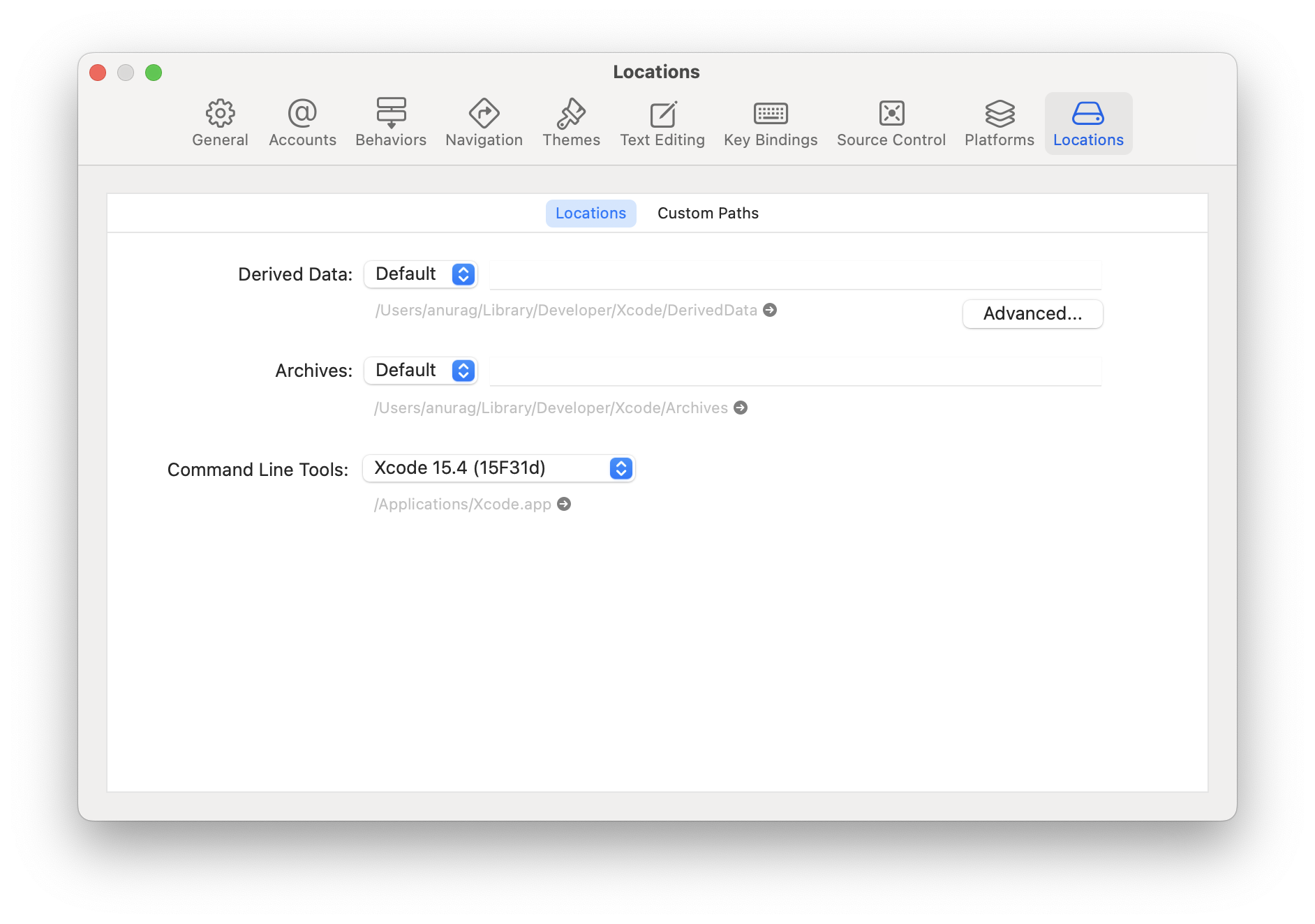
在 Xcode 中安装 iOS 模拟器
安装模拟器只需打开 Xcode > Preferences... 菜单,然后选择 Components 选项,即可看到各种可供安装的不同的 iOS 版本的模拟器。
CocoaPods
CocoaPods是用 Ruby 编写的包管理器(可以理解为针对 iOS 的 npm)。从 0.60 版本开始 react native 的 iOS 版本需要使用 CocoaPods 来管理依赖。你可以使用下面的命令来安装 CocoaPods。CocoaPods 的版本需要 1.10 以上。
当然安装可能也不顺利,请使用代理软件。
sudo gem install cocoapods
或者可以使用 brew 来安装
brew install cocoapods
要了解更多信息,可以访问CocoaPods 的官网。
创建新项目
如果你之前全局安装过旧的
react-native-cli命令行工具,请使用npm uninstall -g react-native-cli卸载掉它以避免一些冲突:
使用 React Native 内建的命令行工具来创建一个名为"AwesomeProject"的新项目。这个命令行工具不需要安装,可以直接用 node 自带的npx命令来使用(注意 init 命令默认会创建最新的版本):
npx @react-native-community/cli init AwesomeProject
注意一:请
不要在目录、文件名中使用中文、空格等特殊符号。请不要单独使用常见的关键字作为项目名(如 class, native, new, package 等等)。请不要使用与核心模块同名的项目名(如 react, react-native 等)。
注意二:0.60 及以上版本的原生依赖是通过 CocoaPods 集成安装的。CocoaPods 的源必须使用代理访问(镜像源也无效)。如果在 CocoaPods 的依赖安装步骤卡住(命令行停在 Installing CocoaPods dependencies 很久,或各种网络超时重置报错,或在 ios 目录中无法生成.xcworkspace 文件),请务必检查确定你的代理配置是否对命令行有效。
如果你是想把 React Native 集成到现有的原生项目中,则步骤完全不同,请参考集成到现有原生应用。
[可选参数] 指定版本或项目模板
你可以使用--version参数(注意是两个杠)创建指定版本的项目。注意版本号必须精确到两个小数点。
npx @react-native-community/cli init AwesomeProject --version X.XX.X
还可以使用--template来使用一些社区提供的模板。
[可选文件] Xcode 的环境配置文件
从 React Native 版本 0.69 开始,可以使用模板提供的 .xcode.env 文件来配置 Xcode 环境。
.xcode.env 文件中包含一个环境变量示例,用于在 NODE_BINARY 变量中导出 node 执行文件的路径。这是将构建基础结构与node系统版本解耦的推荐做法。如果与默认值不同,则应使用您自己的路径或您自己的node版本管理器来自定义此变量。
此外,您还可以在构建脚本阶段中添加任何其他环境变量并导入 .xcode.env 文件。如果您需要运行需要特定环境的脚本,这也是将构建阶段与特定环境解耦的推荐做法。
编译并运行 React Native 应用
在你的项目目录中运行yarn ios或者yarn react-native run-ios:
cd AwesomeProject
yarn ios
# 或者
yarn react-native run-ios
此命令会对项目的原生部分进行编译,同时在另外一个命令行中启动Metro服务对 js 代码进行实时打包处理(类似 webpack)。Metro服务也可以使用yarn start命令单独启动。
提示:如果此命令无法正常运行,请使用 Xcode 运行来查看具体错误(run-ios 的报错没有任何具体信息)。注意 0.60 版本之后的主项目文件是
.xcworkspace,不是.xcodeproj!
很快就应该能看到 iOS 模拟器自动启动并运行你的项目。
在正常编译完成后,开发期间请保持Metro命令行窗口运行而不要关闭。以后需要再次运行项目时,如果没有修改过 ios 目录中的任何文件,则只需单独启动yarn start命令。如果对 ios 目录中任何文件有修改,则需要再次运行yarn ios命令完成原生部分的编译。
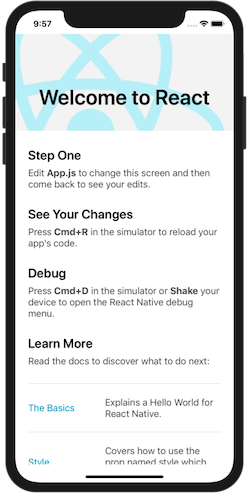
yarn ios只是运行应用的方式之一。你也可以在 Xcode 中直接运行应用。注意 0.60 版本之后的主项目文件是.xcworkspace,不是.xcodeproj。
如果你无法正常运行,先回头
仔细对照文档检查,然后可以看看讨论区。
在真机上运行
上面的命令会自动在 iOS 模拟器上运行应用,如果你想在真机上运行,则请阅读在设备上运行这篇文档。
修改项目
现在你已经成功运行了项目,我们可以开始尝试动手改一改了:
- 使用你喜欢的编辑器打开
App.js并随便改上几行。 - 在 iOS 模拟器中按下
⌘-R就可以刷新 APP 并看到你的最新修改!(如果没有反应,请检查模拟器的 Hardware 菜单中,connect hardware keyboard 选项是否选中开启)
完成了!
恭喜!你已经成功运行并修改了你的第一个 React Native 应用。
接下来?
如果你想把 React Native 集成到现有的原生项目中,则请参考集成到现有原生应用。
如果你想从头开始学习 React Native 开发,可以从简介文档开始。
目标平台
- Android
- iOS
安装依赖
必须安装的依赖有:Node、JDK 和 Android Studio。
虽然你可以使用任何编辑器来开发应用(编写 js 代码),但你仍然必须安装 Android Studio 来获得编译 Android 应用所需的工具和环境。
Node, JDK
我们建议直接使用搜索引擎搜索下载 Node 和Java SE Development Kit (JDK)
注意 Node 的版本应大于等于 18,安装完 Node 后建议设置 npm 镜像(淘宝源)以加速后面的过程(或使用科学上网工具)。
注意:强烈建议始终选择 Node 当前的 LTS (长期维护)版本,一般是偶数版本,不要选择偏实验性质的奇数版本。
注意:不要使用 cnpm!cnpm 安装的模块路径比较奇怪,packager 不能正常识别!
React Native 需要 Java Development Kit [JDK] 17。你可以在命令行中输入
javac -version(请注意是 javac,不是 java)来查看你当前安装的 JDK 版本。如果版本不合要求,则可以去Temurin或Oracle JDK上下载(后者下载需注册登录)。
低于 0.73 版本的 React Native 需要 JDK 11 版本,而低于 0.67 的需要 JDK 8 版本。
# 使用nrm工具切换淘宝源
npx nrm use taobao

# 如果之后需要切换回官方源可使用
npx nrm use npm
Yarn
Yarn是 Facebook 提供的替代 npm 的工具,可以加速 node 模块的下载。
npm install -g yarn
安装完 yarn 之后就可以用 yarn 代替 npm 了,例如用yarn代替npm install命令,用yarn add 某第三方库名代替npm install 某第三方库名。
Android 开发环境
如果你之前没有接触过 Android 的开发环境,那么请做好心理准备,这一过程相当繁琐。请万分仔细地阅读下面的说明,严格对照文档进行配置操作。
译注:请注意!!!国内用户
必须必须必须有稳定的代理软件,否则在下载、安装、配置过程中会不断遭遇链接超时或断开,无法进行开发工作。某些代理软件可能只提供浏览器的代理功能,或只针对特定网站代理等等,请自行研究配置或更换其他软件。总之如果报错中出现有网址,那就是因为链接源仓库的网络链接被阻断了,这一阻断现象可能因时间、地区、运营商而不同。
也可以尝试参考这里的做法设置阿里云的 maven 镜像源,但这个做法可能随 gradle 或者 rn 版本的不同而失效。
1. 安装 Android Studio
首先下载和安装 Android Studio,国内用户可能无法打开官方链接,请自行使用搜索引擎搜索可用的下载链接。安装界面中选择"Custom"选项,确保选中了以下几项:
Android SDKAndroid SDK PlatformAndroid Virtual Device
然后点击"Next"来安装选中的组件。
如果选择框是灰的,你也可以先跳过,稍后再来安装这些组件。
安装完成后,看到欢迎界面时,就可以进行下面的操作了。
2. 安装 Android SDK
Android Studio 默认会安装最新版本的 Android SDK。目前编译 React Native 应用需要的是Android 14 (UpsideDownCake)版本的 SDK(注意 SDK 版本不等于终端系统版本,RN 目前支持 android 6 以上设备)。你可以在 Android Studio 的 SDK Manager 中选择安装各版本的 SDK。
你可以在 Android Studio 的欢迎界面中找到 SDK Manager。点击"Configure",然后就能看到"SDK Manager"。
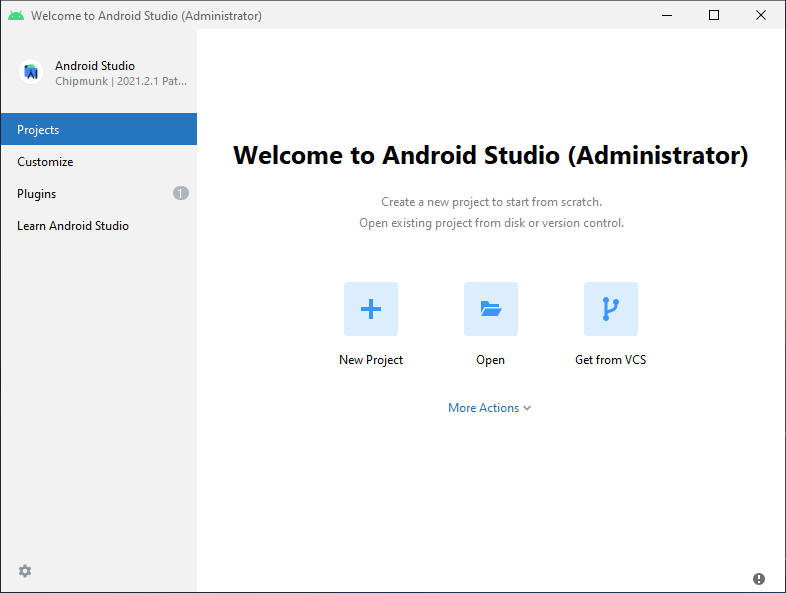
SDK Manager 还可以在 Android Studio 的"Preferences"菜单中找到。具体路径是Appearance & Behavior → System Settings → Android SDK。
在 SDK Manager 中选择"SDK Platforms"选项卡,然后在右下角勾选"Show Package Details"。展开Android 14 (UpsideDownCake)选项,确保勾选了下面这些组件(如果你看不到这个界面,则需要使用稳定的代理软件):
Android SDK Platform 34Intel x86 Atom_64 System Image(官方模拟器镜像文件,使用非官方模拟器不需要安装此组件)
然后点击"SDK Tools"选项卡,同样勾中右下角的"Show Package Details"。展开"Android SDK Build-Tools"选项,确保选中了 React Native 所必须的34.0.0版本。你可以同时安装多个其他版本。
最后点击"Apply"来下载和安装这些组件。
3. 配置 ANDROID_HOME 环境变量
React Native 需要通过环境变量来了解你的 Android SDK 装在什么路径,从而正常进行编译。
打开控制面板 -> 系统和安全 -> 系统 -> 高级系统设置 -> 高级 -> 环境变量 -> 新建,创建一个名为ANDROID_HOME的环境变量(系统或用户变量均可),指向你的 Android SDK 所在的目录(具体的路径可能和下图不一致,请自行确认):

SDK 默认是安装在下面的目录:
C:\Users\你的用户名\AppData\Local\Android\Sdk
你可以在 Android Studio 的"Preferences"菜单中查看 SDK 的真实路径,具体是Appearance & Behavior → System Settings → Android SDK。
你需要关闭现有的命令符提示窗口然后重新打开,这样新的环境变量才能生效。
4. 把工具目录添加到环境变量 Path
打开控制面板 -> 系统和安全 -> 系统 -> 高级系统设置 -> 高级 -> 环境变量,选中Path变量,然后点击编辑。点击新建然后把以下工具目录路径添加进去:platform-tools
%ANDROID_HOME%\platform-tools
创建新项目
如果你之前全局安装过旧的
react-native-cli命令行工具,请使用npm uninstall -g react-native-cli卸载掉它以避免一些冲突:
使用 React Native 内建的命令行工具来创建一个名为"AwesomeProject"的新项目。这个命令行工具不需要安装,可以直接用 node 自带的npx命令来使用:
必须要看的注意事项一:请
不要在目录、文件名中使用中文、空格等特殊符号。请不要单独使用常见的关键字作为项目名(如 class, native, new, package 等等)。请不要使用与核心模块同名的项目名(如 react, react-native 等)。
必须要看的注意事项二:请
不要在某些权限敏感的目录例如 System32 目录中 init 项目!会有各种权限限制导致不能运行!
必须要看的注意事项三:请
不要使用一些移植的终端环境,例如git bash或mingw等等,这些在 windows 下可能导致找不到环境变量。请使用系统自带的命令行(CMD 或 powershell)运行。
npx @react-native-community/cli init AwesomeProject
如果你是想把 React Native 集成到现有的原生项目中,则步骤完全不同,请参考集成到现有原生应用。
[可选参数] 指定版本或项目模板
你可以使用--version参数(注意是两个杠)创建指定版本的项目。注意版本号必须精确到两个小数点。
npx @react-native-community/cli init AwesomeProject --version X.XX.X
还可以使用--template来使用一些社区提供的模板。
准备 Android 设备
你需要准备一台 Android 设备来运行 React Native Android 应用。这里所指的设备既可以是真机,也可以是模拟器。后面我们所有的文档除非特别说明,并不区分真机或者模拟器。Android 官方提供了名为 Android Virtual Device(简称 AVD)的模拟器。此外还有很多第三方提供的模拟器如Genymotion、BlueStack 等。一般来说官方模拟器免费、功能完整,但性能较差。第三方模拟器性能较好,但可能需要付费,或带有广告。
使用 Android 真机
你也可以使用 Android 真机来代替模拟器进行开发,只需用 usb 数据线连接到电脑,然后遵照在设备上运行这篇文档的说明操作即可。
使用 Android 模拟器
你可以使用 Android Studio 打开项目下的"android"目录,然后可以使用"AVD Manager"来查看可用的虚拟设备,它的图标看起来像下面这样:
如果你刚刚才安装 Android Studio,那么可能需要先创建一个虚拟设备。点击"Create Virtual Device...",然后选择所需的设备类型并点击"Next",然后选择Tiramisu API Level 33 image.
译注:请不要轻易点击 Android Studio 中可能弹出的建议更新项目中某依赖项的建议,否则可能导致无法运行。
编译并运行 React Native 应用
确保你先运行了模拟器或者连接了真机,然后在你的项目目录中运行yarn android或者yarn react-native run-android:
cd AwesomeProject
yarn android
# 或者
yarn react-native run-android
此命令会对项目的原生部分进行编译,同时在另外一个命令行中启动Metro服务对 js 代码进行实时打包处理(类似 webpack)。Metro服务也可以使用yarn start命令单独启动。
如果配置没有问题,你应该可以看到应用自动安装到设备上并开始运行。注意第一次运行时需要下载大量编译依赖,耗时可能数十分钟。此过程严重依赖稳定的代理软件,否则将频繁遭遇链接超时和断开,导致无法运行。
npx react-native run-android只是运行应用的方式之一。你也可以在 Android Studio 中直接运行应用。
译注:建议在
run-android成功后再尝试使用 Android Studio 启动。请不要轻易点击 Android Studio 中可能弹出的建议更新项目中某依赖项的建议,否则可能导致无法运行。
如果你无法正常运行,遇到奇奇怪怪的红屏错误,先回头
仔细对照文档检查,然后可以看看问题讨论区。不同时期不同版本可能会碰到不同的问题,我们会在论坛中及时解答更新。但请注意千万不要执行 bundle 命令,那样会导致代码完全无法刷新。
修改项目
现在你已经成功运行了项目,我们可以开始尝试动手改一改了:
- 使用你喜欢的文本编辑器打开
App.js并随便改上几行 - 按两下 R 键,或是在开发者菜单中选择 Reload,就可以看到你的最新修改。
完成了!
恭喜!你已经成功运行并修改了你的第一个 React Native 应用
接下来?
如果你想把 React Native 集成到现有的原生项目中,则请参考集成到现有原生应用。
如果你想从头开始学习 React Native 开发,可以从简介文档开始。
暂不支持
苹果公司目前只允许在 Mac 电脑上开发 iOS 应用。如果你没有 Mac 电脑,那么只能考虑使用
沙盒环境,或者先开发 Android 应用了。
目标平台
- Android
- iOS
安装依赖
必须安装的依赖有:Node、JDK 和 Android Studio。
虽然你可以使用任何编辑器来开发应用(编写 js 代码),但你仍然必须安装 Android Studio 来获得编译 Android 应用所需的工具和环境。
Node
参照 Node 官方的Linux 安装指南来安装 Node 18 以上的版本。
注意:强烈建议始终选择 Node 当前的 LTS (长期维护)版本,一般是偶数版本,不要选择偏实验性质的奇数版本。
安装完 Node 后建议设置 npm 镜像(淘宝源)以加速后面的过程(或使用科学上网工具)。
注意:不要使用 cnpm!cnpm 安装的模块路径比较奇怪,react native 不能正常识别!
# 使用nrm工具切换淘宝源
npx nrm use taobao

# 如果之后需要切换回官方源可使用
npx nrm use npm
Yarn
Yarn是 Facebook 提供的替代 npm 的工具,可以加速 node 模块的下载。
npm install -g yarn
安装完 yarn 之后就可以用 yarn 代替 npm 了,例如用yarn代替npm install命令,用yarn add 某第三方库名代替npm install 某第三方库名。
Watchman
参照Watchman 的安装说明来从源码来编译和安装 Watchman。
Watchman是由 Facebook 提供的监视文件系统变更的工具。安装此工具可以提高开发时的性能(metro 可以快速捕捉文件的变化从而实现实时刷新)。
Java Development Kit
React Native 当前需要 Java Development Kit [JDK] 17。你可以在命令行中输入
javac -version(请注意是 javac,不是 java)来查看你当前安装的 JDK 版本。如果版本不合要求,则可以去Temurin或Oracle JDK上下载(后者下载需注册登录)。
低于 0.73 版本的 React Native 需要 JDK 11 版本,而低于 0.67 的需要 JDK 8 版本。
Android 开发环境
如果你之前没有接触过 Android 的开发环境,那么请做好心理准备,这一过程相当繁琐。请万分仔细地阅读下面的说明,严格对照文档进行配置操作。
译注:请注意!!!国内用户
必须必须必须有稳定的代理软件,否则在下载、安装、配置过程中会不断遭遇链接超时或断开,无法进行开发工作。某些代理软件可能只提供浏览器的代理功能,或只针对特定网站代理等等,请自行研究配置或更换其他软件。总之如果报错中出现有网址,那就是因为链接源仓库的网络链接被阻断了,这一阻断现象可能因时间、地区、运营商而不同。
也可以尝试参考这里的做法设置阿里云的 maven 镜像源,但这个做法可能随 gradle 或者 rn 版本的不同而失效。
1. 安装 Android Studio
首先下载和安装 Android Studio,国内用户可能无法打开官方链接,可自行使用搜索引擎搜索可用的下载链接。安装界面中选择"Custom"选项,确保选中了以下几项:
Android SDKAndroid SDK PlatformAndroid Virtual Device
然后点击"Next"来安装选中的组件。
如果选择框是灰的,你也可以先跳过,稍后再来安装这些组件。
安装完成后,看到欢迎界面时,就可以进行下面的操作了。
2. 安装 Android SDK
Android Studio 默认会安装最新版本的 Android SDK。目前编译 React Native 应用需要的是Android 14 (UpsideDownCake)版本的 SDK(注意 SDK 版本不等于终端系统版本,RN 目前支持 android 6 以上设备)。你可以在 Android Studio 的 SDK Manager 中选择安装各版本的 SDK。
你可以在 Android Studio 的欢迎界面中找到 SDK Manager。点击"Configure",然后就能看到"SDK Manager"。
SDK Manager 还可以在 Android Studio 的"Preferences"菜单中找到。具体路径是Appearance & Behavior → System Settings → Android SDK。
在 SDK Manager 中选择"SDK Platforms"选项卡,然后在右下角勾选"Show Package Details"。展开Android 14 (UpsideDownCake)选项,确保勾选了下面这些组件(如果看不到这个界面,则需要使用稳定的代理软件):
Android SDK Platform 34Intel x86 Atom_64 System Image(官方模拟器镜像文件,使用非官方模拟器不需要安装此组件)
然后点击"SDK Tools"选项卡,同样勾中右下角的"Show Package Details"。展开"Android SDK Build-Tools"选项,确保选中了 React Native 所必须的34.0.0版本。你可以同时安装多个其他版本。
最后点击"Apply"来下载和安装这些组件。
3. 配置 ANDROID_HOME 环境变量
React Native 需要通过环境变量来了解你的 Android SDK 装在什么路径,从而正常进行编译。
具体的做法是把下面的命令加入到 shell 的配置文件中。如果你的 shell 是 zsh,则配置文件为~/.zshrc,如果是 bash 则为~/.bash_profile(可以使用echo $0命令查看你所使用的 shell):
# 如果你不是通过Android Studio安装的sdk,则其路径可能不同,请自行确定清楚。
export ANDROID_HOME=$HOME/Library/Android/sdk
export PATH=$PATH:$ANDROID_HOME/platform-tools
export PATH=$PATH:$ANDROID_HOME/emulator
使用source $HOME/.zshrc命令来使环境变量设置立即生效(否则重启后才生效)。可以使用echo $ANDROID_HOME检查此变量是否已正确设置
请确保你正确指定了 Android SDK 路径。你可以在 Android Studio 的"Preferences"菜单中查看 SDK 的真实路径,具体是Appearance & Behavior → System Settings → Android SDK
创建新项目
如果你之前全局安装过旧的
react-native-cli命令行工具,请使用npm uninstall -g react-native-cli卸载掉它以避免一些冲突:
使用 React Native 内建的命令行工具来创建一个名为"AwesomeProject"的新项目。这个命令行工具不需要安装,可以直接用 node 自带的npx命令来使用:
npx @react-native-community/cli init AwesomeProject
如果你是想把 React Native 集成到现有的原生项目中,则步骤完全不同,请参考集成到现有原生应用。
[可选参数] 指定版本或项目模板
你可以使用--version参数(注意是两个杠)创建指定版本的项目。例如:
npx @react-native-community/cli init AwesomeProject --version X.XX.X
还可以使用--template来使用一些社区提供的模板。
准备 Android 设备
你需要准备一台 Android 设备来运行 React Native Android 应用。这里所指的设备既可以是真机,也可以是模拟器。后面我们所有的文档除非特别说明,并不区分真机或者模拟器。Android 官方提供了名为 Android Virtual Device(简称 AVD)的模拟器。此外还有很多第三方提供的模拟器如Genymotion、BlueStack 等。一般来说官方模拟器免费、功能完整,但性能较差。第三方模拟器性能较好,但可能需要付费,或带有广告。
使用 Android 真机
你也可以使用 Android 真机来代替模拟器进行开发,只需用 usb 数据线连接到电脑,然后遵照在设备上运行这篇文档的说明操作即可。
使用 Android 模拟器
你可以使用 Android Studio 打开项目下的"android"目录,然后可以使用"AVD Manager"来查看可用的虚拟设备,它的图标看起来像下面这样:

如果你刚刚才安装 Android Studio,那么可能需要先创建一个虚拟设备。点击"Create Virtual Device...",然后选择所需的设备类型并点击"Next",然后选择Tiramisu API Level 33 image.
译注:请不要轻易点击 Android Studio 中可能弹出的建议更新项目中某依赖项的建议,否则可能导致无法运行。
建议先开启虚拟加速技术以提高模拟器性能。
然后点击"Next"和"Finish"来完成虚拟设备的创建。现在你应该可以点击虚拟设备旁的绿色三角按钮来启动它了。然后我们可以尝试运行应用了。
编译并运行 React Native 应用
确保你先运行了模拟器或者连接了真机,然后在你的项目目录中运行yarn android或者yarn react-native run-android:
cd AwesomeProject
yarn android
# 或者
yarn react-native run-android
此命令会对项目的原生部分进行编译,同时在另外一个命令行中启动Metro服务对 js 代码进行实时打包处理(类似 webpack)。Metro服务也可以使用yarn start命令单独启动。
如果配置没有问题,你应该可以看到应用自动安装到设备上并开始运行。注意第一次运行时需要下载大量编译依赖,耗时可能数十分钟。此过程严重依赖稳定的代理软件,否则将频繁遭遇链接超时和断开,导致无法运行。
npx react-native run-android只是运行应用的方式之一。你也可以在 Android Studio 中直接运行应用。
译注:建议在
run-android成功后再尝试使用 Android Studio 启动。请不要轻易点击 Android Studio 中可能弹出的建议更新项目中某依赖项的建议,否则可能导致无法运行。
如果你无法正常运行,遇到奇奇怪怪的红屏错误,先回头
仔细对照文档检查,然后可以看看问题讨论区。不同时期不同版本可能会碰到不同的问题,我们会在论坛中及时解答更新。但请注意千万不要执行 bundle 命令,那样会导致代码完全无法刷新。
修改项目
现在你已经成功运行了项目,我们可以开始尝试动手改一改了:
- 使用你喜欢的文本编辑器打开
App.tsx并随便改上几行 - 按两下 R 键,或是在开发者菜单中选择 Reload,就可以看到你的最新修改。
完成了!
恭喜!你已经成功运行并修改了你的第一个 React Native 应用
接下来?
如果你想把 React Native 集成到现有的原生项目中,则请参考集成到现有原生应用。
如果你想从头开始学习 React Native 开发,可以从简介文档开始。
暂不支持
苹果公司目前只允许在 Mac 电脑上开发 iOS 应用。如果你没有 Mac 电脑,那么只能考虑使用
沙盒环境,或者先开发 Android 应用了。